Make Custom Tees with Cricut Infusible Ink: Step-by-Step Guide
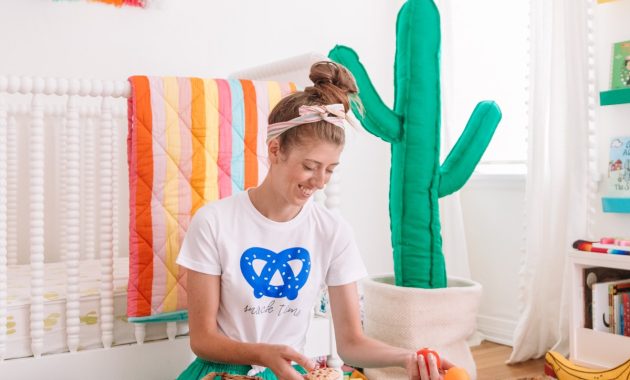
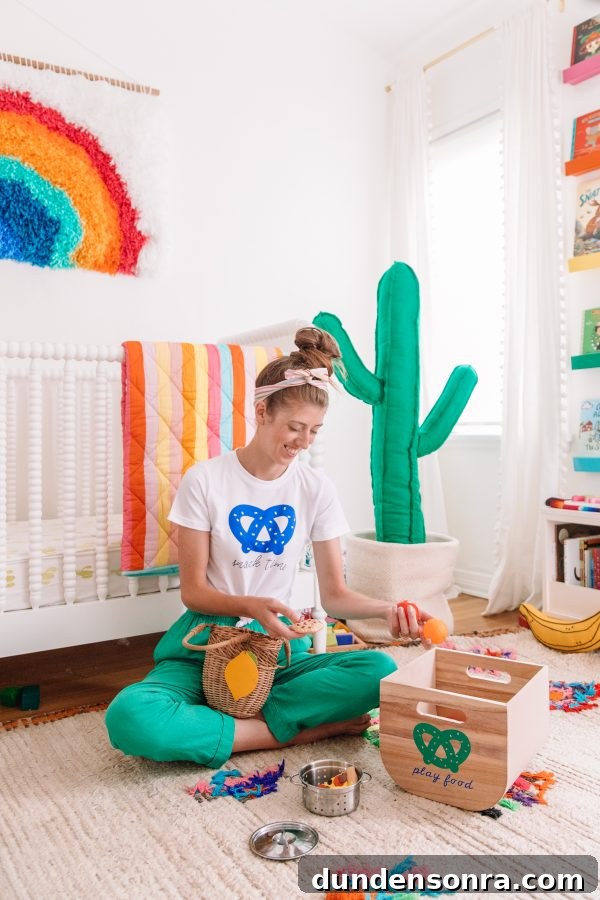
This might be one of the most exciting craft products I’ve tried. Cricut recently introduced Infusible Ink, and it changes how you make custom apparel and accessories. Instead of layering material on top of a shirt like traditional iron-on vinyl, Infusible Ink actually bonds the ink into the fabric so the design becomes one with the garment. The result looks and feels like store-bought apparel — soft, seamless, and permanent.
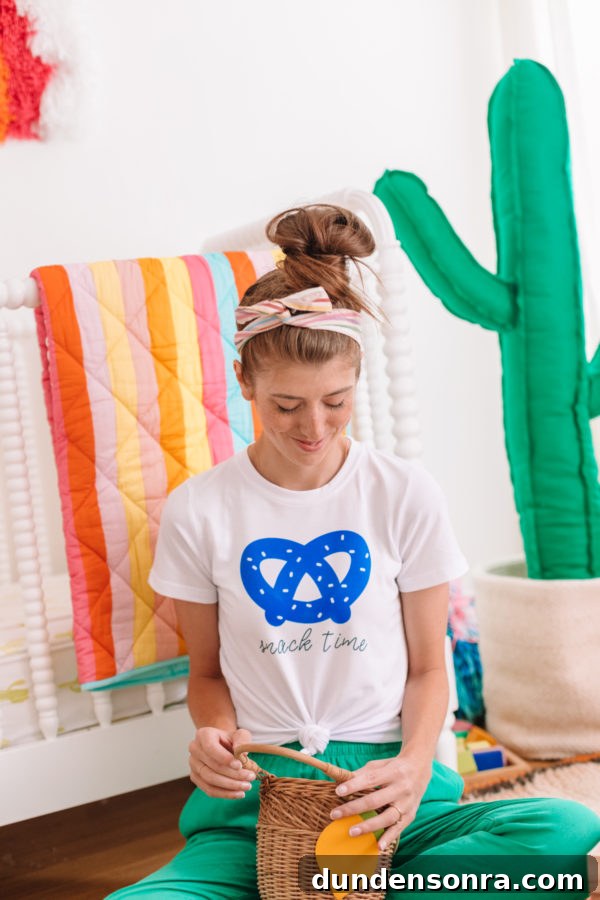
I made a few snack-themed tees for Arlo to test the process (snack is his current favorite word), and enjoyed it so much I made one for myself too. Below I explain how the products in the Infusible Ink line work and walk through my process for making a tee.
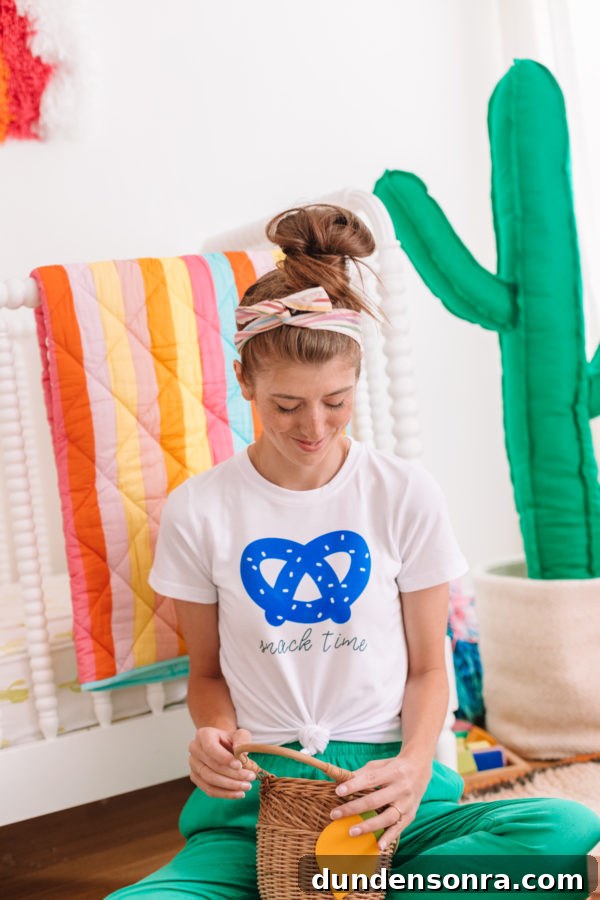
DIY Infusible Ink Tee
Total Time:
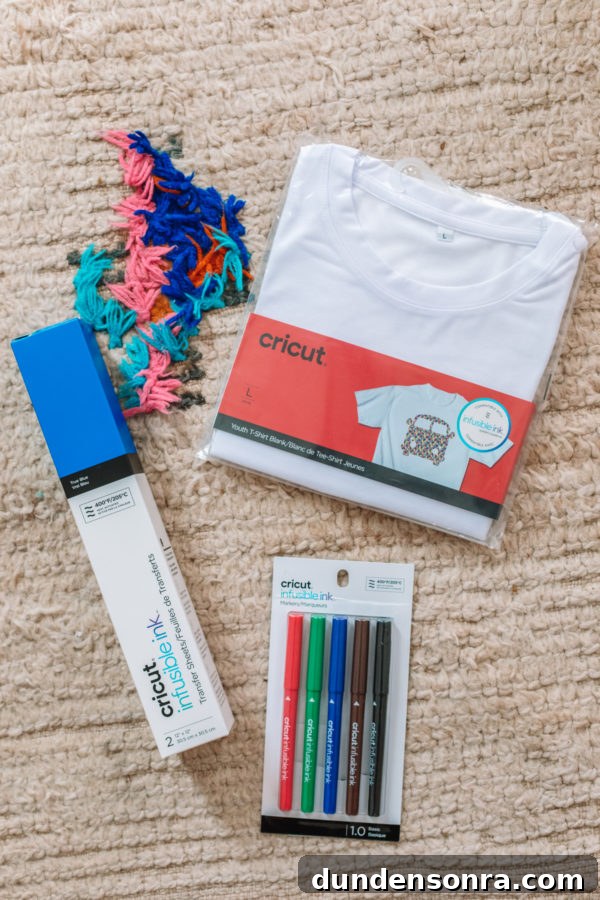
Supplies
Cricut Maker or Explore
Cricut EasyPress 2
Cricut EasyPress Mat
Cricut Cutting Mat
Infusible Ink Sheets (with the included butcher paper)
Infusible Ink Markers
Cricut Infusible Ink T-Shirt Blank
Cardstock
Laser copy paper
Scissors
Lint roller
Heat-resistant tape
Directions
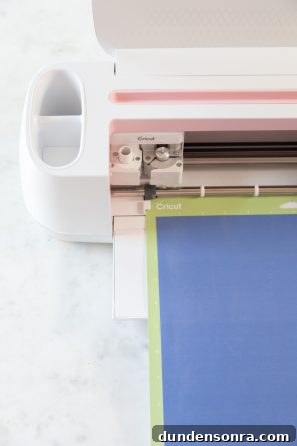
1. Design and cut your shape using the Cricut Maker or Explore. Use designs from the Cricut library or upload your own. Place the Infusible Ink sheet on the cutting mat with the printed side up and cut. Remember to enable the “mirror” setting for any design that requires it.
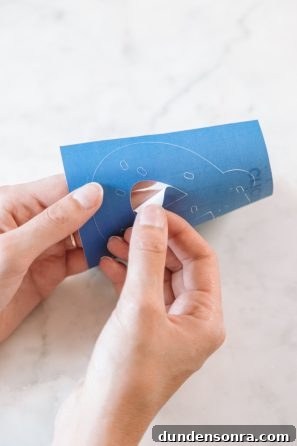
2. Trim a rectangle around the cut shape and remove the excess material, leaving the design on its clear liner.
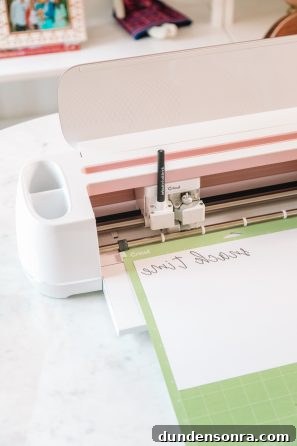
3. To add lettering, have the Cricut draw the word with an Infusible Ink marker. Place a piece of laser copy paper on the cutting mat, load the marker, and use the draw setting. Mirror the design if needed so the drawn image transfers correctly.
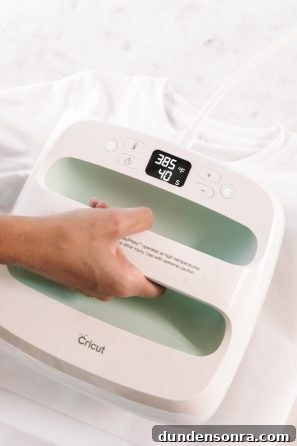
4. Preheat the EasyPress 2 to 385°F and set the timer for 15 seconds. Place the t-shirt on the EasyPress Mat and insert a piece of cardstock inside the shirt to prevent bleed-through.
5. Lint-roll the shirt, then place a sheet of butcher paper over the area to be printed. Preheat the shirt by pressing with the EasyPress for 15 seconds to remove moisture and wrinkles. Allow it to cool completely.
6. Position your cut shape face down on the shirt where you want the design. Set the EasyPress to 385°F and press for 40 seconds using light pressure, covering the design with butcher paper before pressing.
7. Remove the EasyPress and let the shirt cool completely. Peel away the butcher paper and the liner to reveal the infused design.
8. For drawn details, follow the same pressing steps, securing the laser copy paper with heat-resistant tape. Make sure the drawn side is facing the fabric when you press.
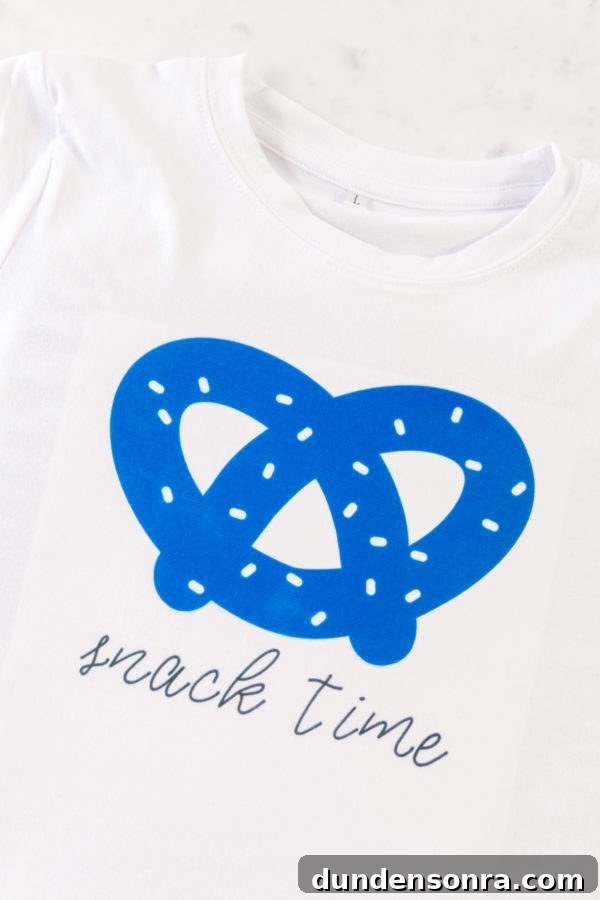
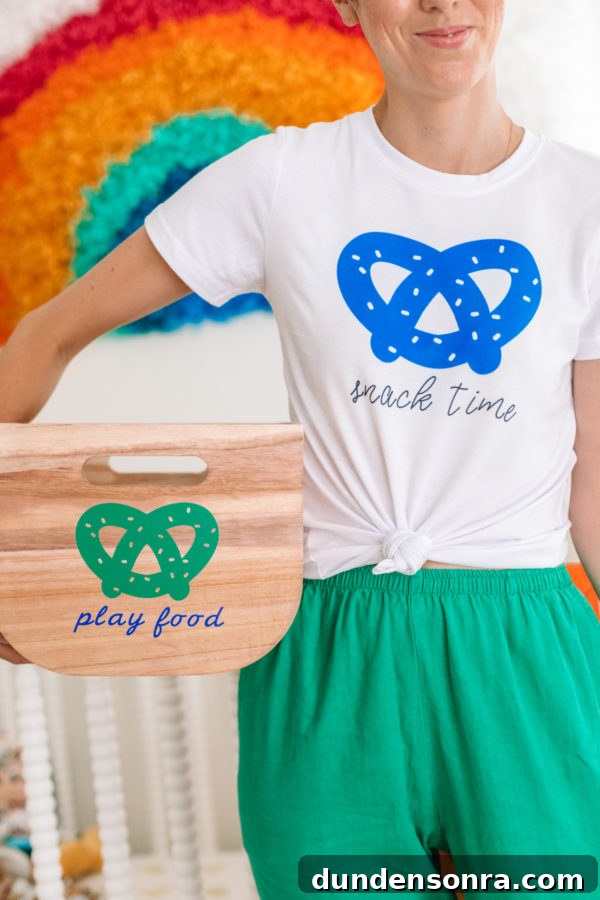
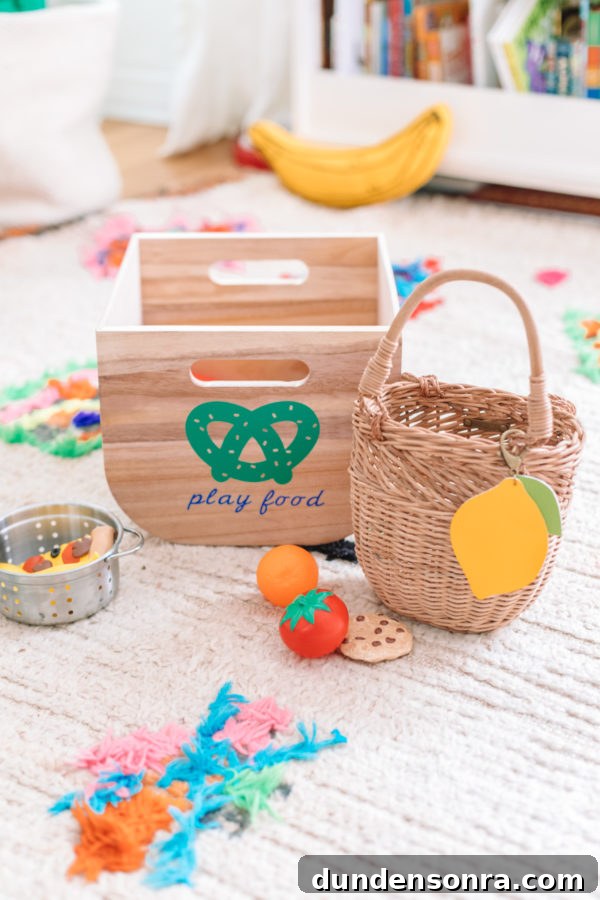
If you want more project ideas, you can use Cricut vinyl for labeling bins and containers, which I did for Arlo’s toy storage. Visual labels make clean-up easier and more fun for toddlers who are learning where things belong.
I also used the Cricut Maker to cut faux leather charms in a previous tutorial, and I turned one into a little charm for Arlo’s farmer’s market basket. At this point I’m using the Cricut for a lot of small projects around the house.
Photos by Jeff Mindell
Infusible Ink also opens a great opportunity to involve older toddlers and kids: let them draw with Infusible Ink markers and turn their artwork into a wearable tee. The results are personal, durable, and a lot of fun to make.
This post was created in partnership with Cricut. All opinions are my own.