
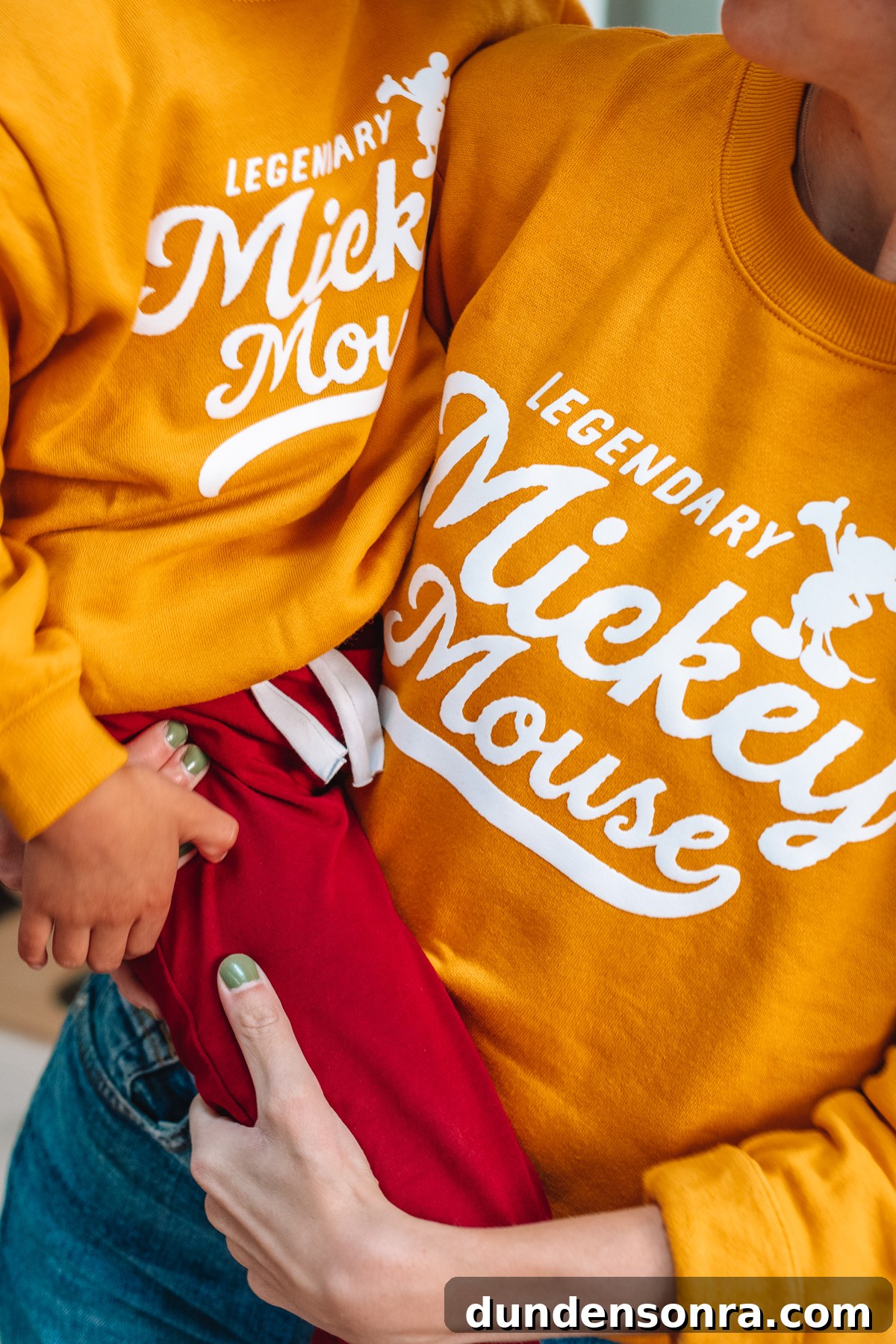
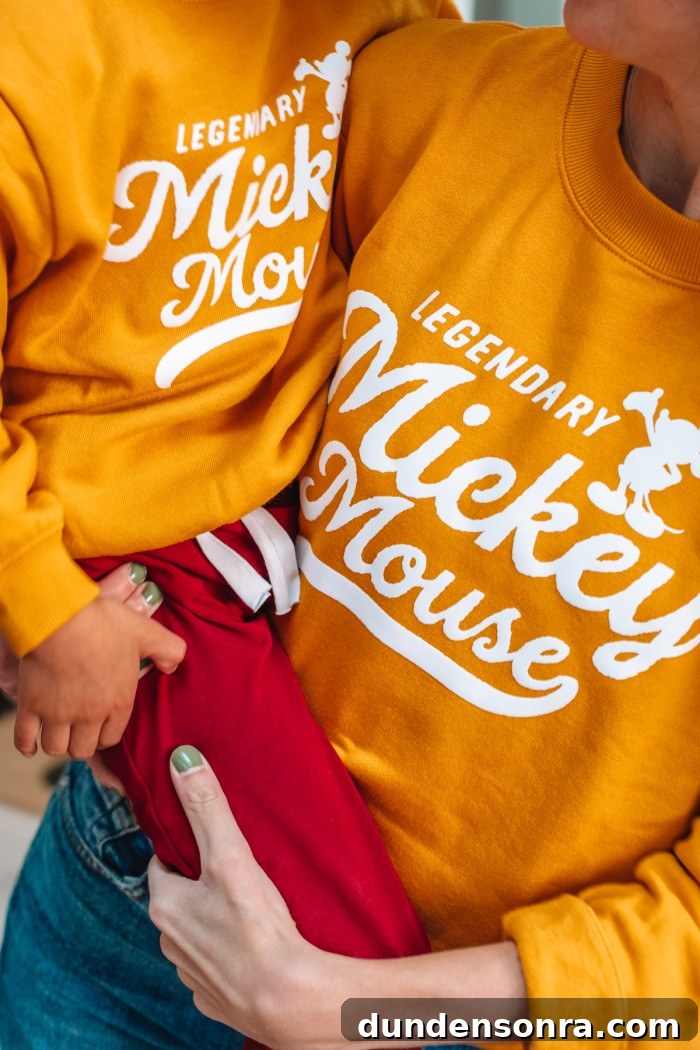
I adore parent-and-child matching outfits, and I’m especially obsessed when they involve Disney. I recently tested the Brother ScanNCut DX SDX230Di Electronic Cutting Machine — the Disney edition — and used one of the more than 150 built-in Disney designs to make these cute mommy-and-me Disney sweatshirts.
Below I’ll walk through the shirt tutorial, highlight favorite features of the ScanNCut, and share how you can enter to win one yourself.
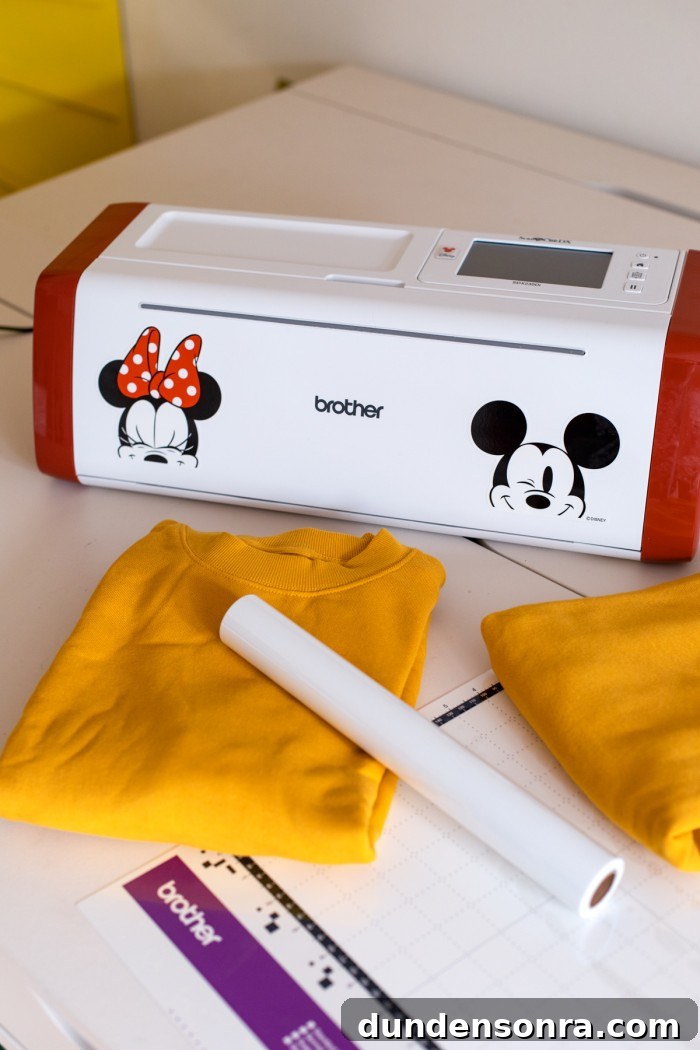
An electronic cutting machine is an incredibly versatile and fun tool to keep in your craft room. It lets you create home decor, fashion, and craft projects in many different materials. For Disney fans, the Disney edition adds an extra layer of excitement with licensed artwork ready to use.
A few of the ScanNCut DX SDX230Di’s standout features:
- Built-in blade sensor technology automatically detects material thickness and adjusts blade pressure.
- Stand-alone functionality — you can use it without connecting to a computer (though connection is optional).
- Scan capability: scan drawings or artwork and convert them into cut or draw files for projects.
- Comes with over 1,400 built-in designs, including 150+ Disney designs.
- Easy and intuitive to use with minimal setup, so you can jump straight into projects.
What You’ll Need
For this project, gather:
- Plain sweatshirt(s)
- Brother ScanNCut DX SDX230Di Electronic Cutting Machine
- Iron-on vinyl
- Scissors
- Thin cloth (for ironing)
- Iron
Step by Step Mommy & Me Disney Shirt Tutorial
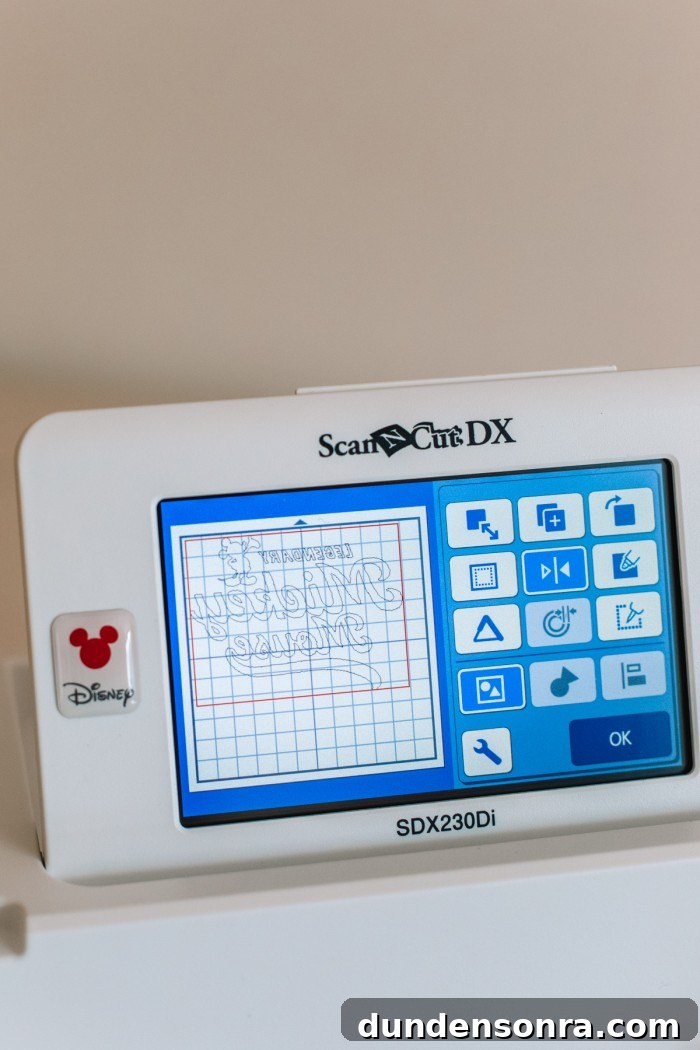
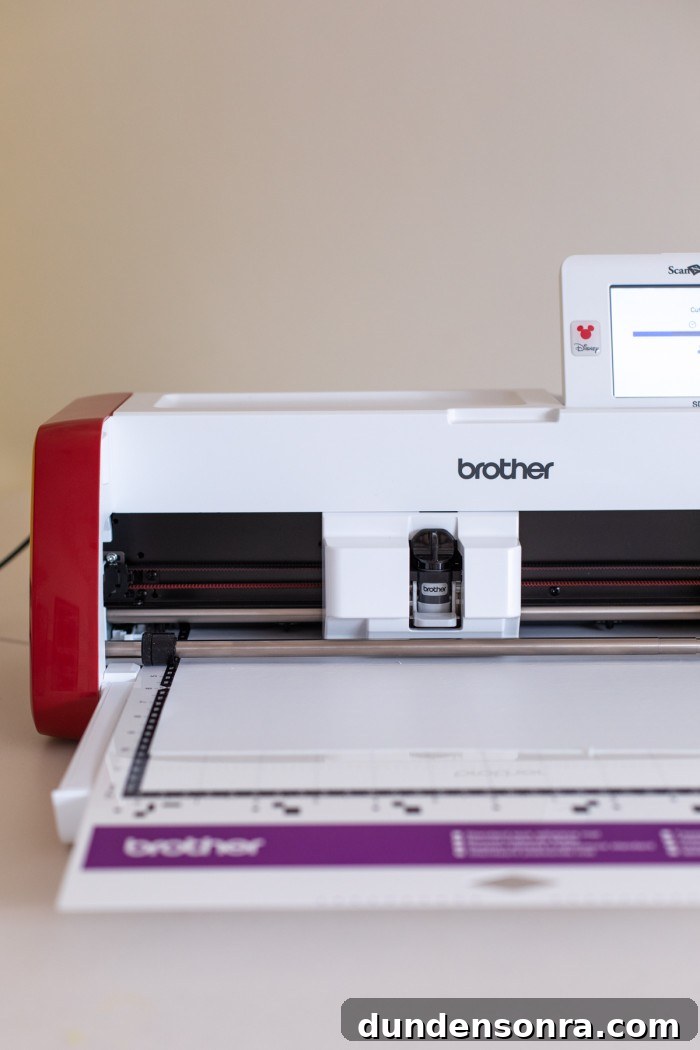
- Power on the Brother ScanNCut and select the built-in “Legendary Mickey Mouse” graphic.
- Resize the design as needed. For iron-on vinyl projects, be sure to enable the “mirror” option so the design transfers correctly.
- The machine’s blade sensor will set pressure automatically. Turn on the “half cut” setting so it cuts through the vinyl but not the clear carrier sheet.
- Cut a piece of vinyl to fit and place it on the standard grip mat. Load the mat into the machine and start the cut.
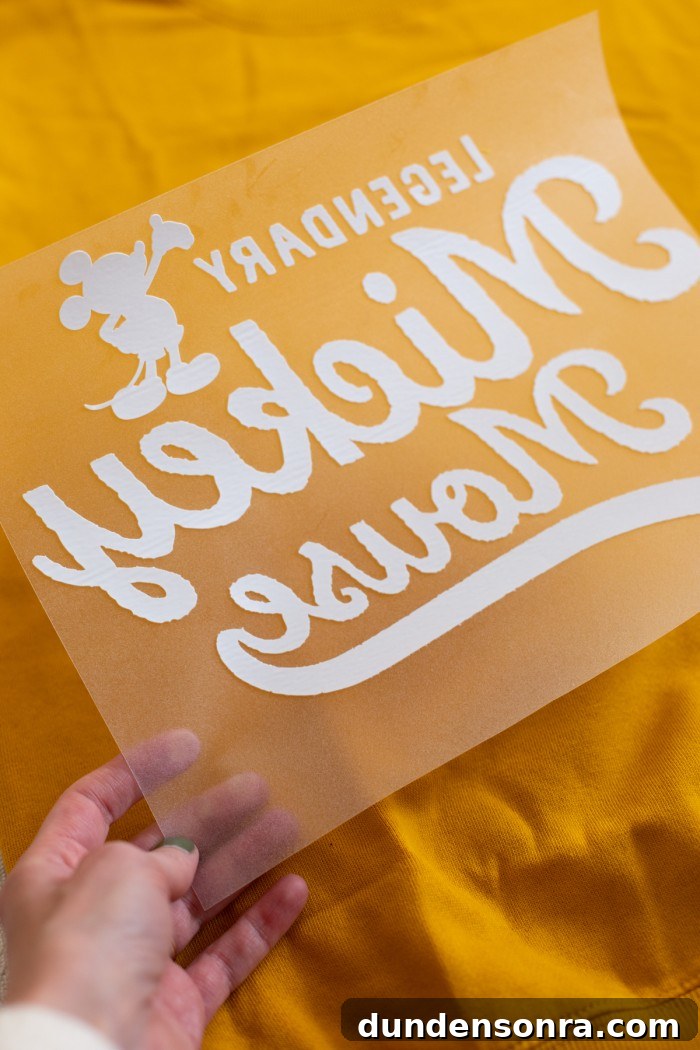
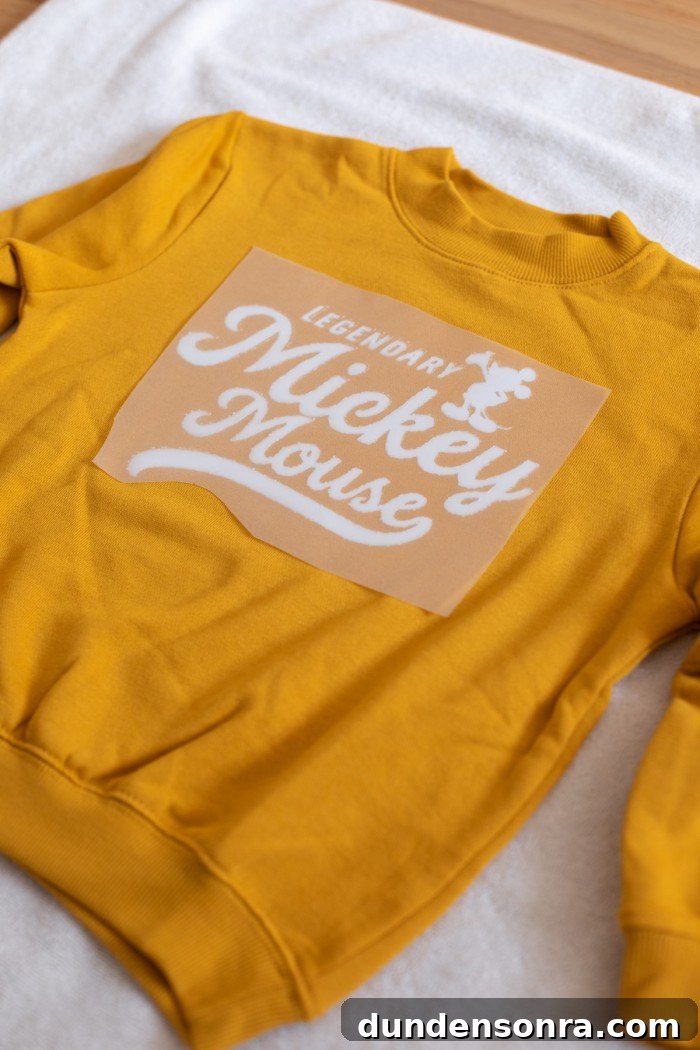
5. After cutting, weed the design by removing the excess vinyl, leaving only the artwork on the carrier sheet.
6. Pre-iron the sweatshirt surface where you’ll place the decal to remove wrinkles and moisture.
7. Position the decal on the sweatshirt, cover with a thin cloth, and press with an iron using firm pressure. Hold for about 12–15 seconds on each section of the design for even adhesion.
8. Allow the vinyl to cool completely, then peel off the clear carrier sheet.
Repeat the process for the second sweatshirt to create coordinated mommy-and-me Disney shirts.
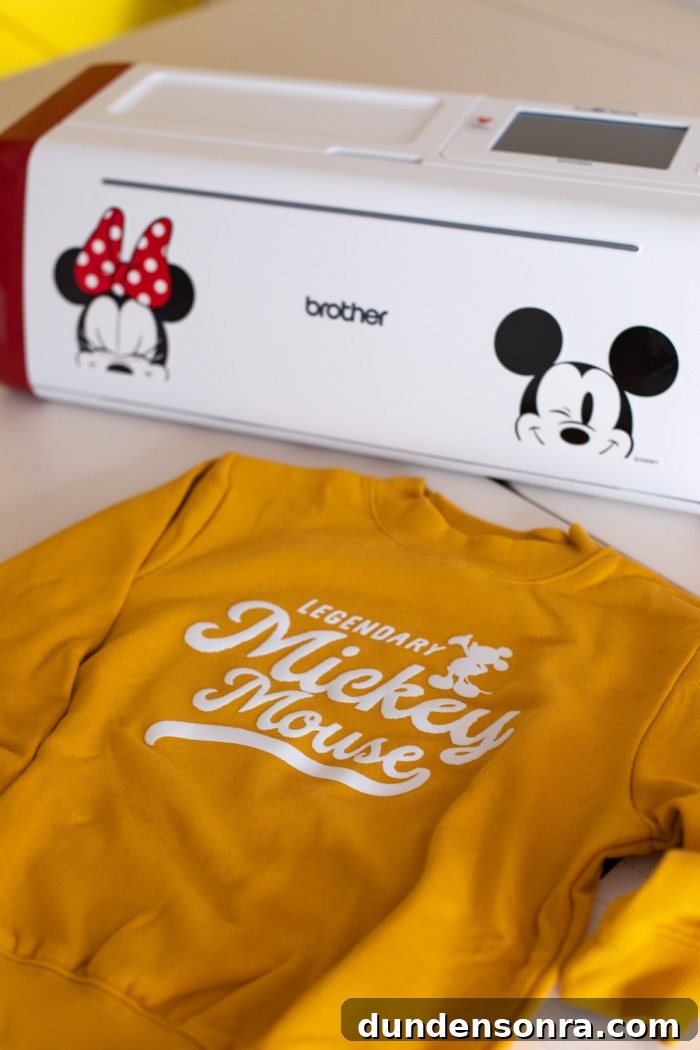
These shirts came together quickly and the cut detail is lovely—the design has a timeless, slightly vintage look that I really love. They’re cozy for home and will be perfect for our next Disney trip.

Photos by Jeff Mindell
Interested in winning a Brother ScanNCut? Visit my Instagram to learn how to enter and get one for your Disney-inspired crafts and more.
Sponsored content created in partnership with Brother. All opinions are my own.
Print
DIY Mommy + Me Disney Shirts
Materials
- Sweatshirt
- ScanNCut DX SDX230Di Electronic Cutting Machine
- Iron-on vinyl
- Scissors
- Thin cloth for ironing
- Iron
Instructions
-
Turn on your Brother ScanNCut and navigate to the “Legendary Mickey Mouse” graphic that is already built in.
-
Adjust the size as desired. And don’t forget to select the “mirror” option since this is an iron-on project.
-
The machine will automatically adjust to the bade pressure needed, but be sure to turn the “half cut” option on so it only cuts through the vinyl and not the clear protective film!
-
Cut a piece of your vinyl and place it on the standard grip mat, load it into your machine by pressing the load button. Hit “cut” on your screen.
-
Once your decal is cut, weed it. That means, you’ll remove the excess vinyl leaving only your design on the clear protective plastic.
-
Iron the surface of your sweatshirt where you intend to place the decal.
-
Then, place the decal on your sweatshirt as desired. Lay a thin cloth over it and iron on with firm pressure, for about 12-15 seconds on each part of the decal.
-
Let cool completely and then remove the clear plastic.